Accessing invoices
All E1 subscription invoices are located in Settings - Invoices (located within the top right dropdown menu).
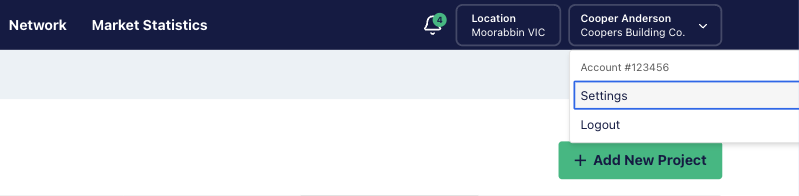
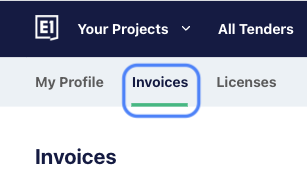
This section serves as your historical archive where you can view and download past records, and also shows any current invoices that are due for payment.
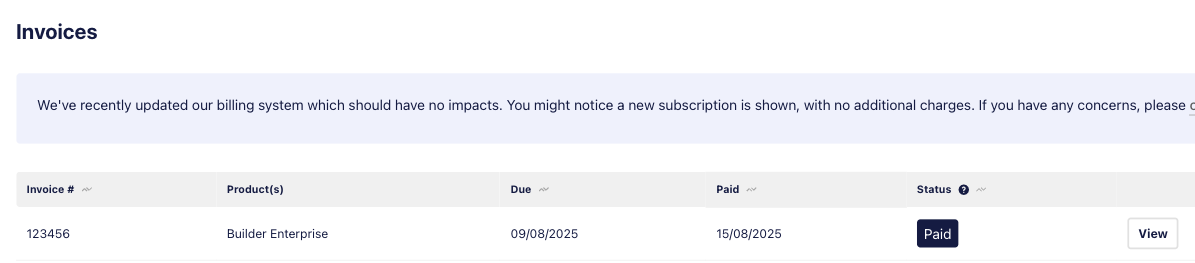
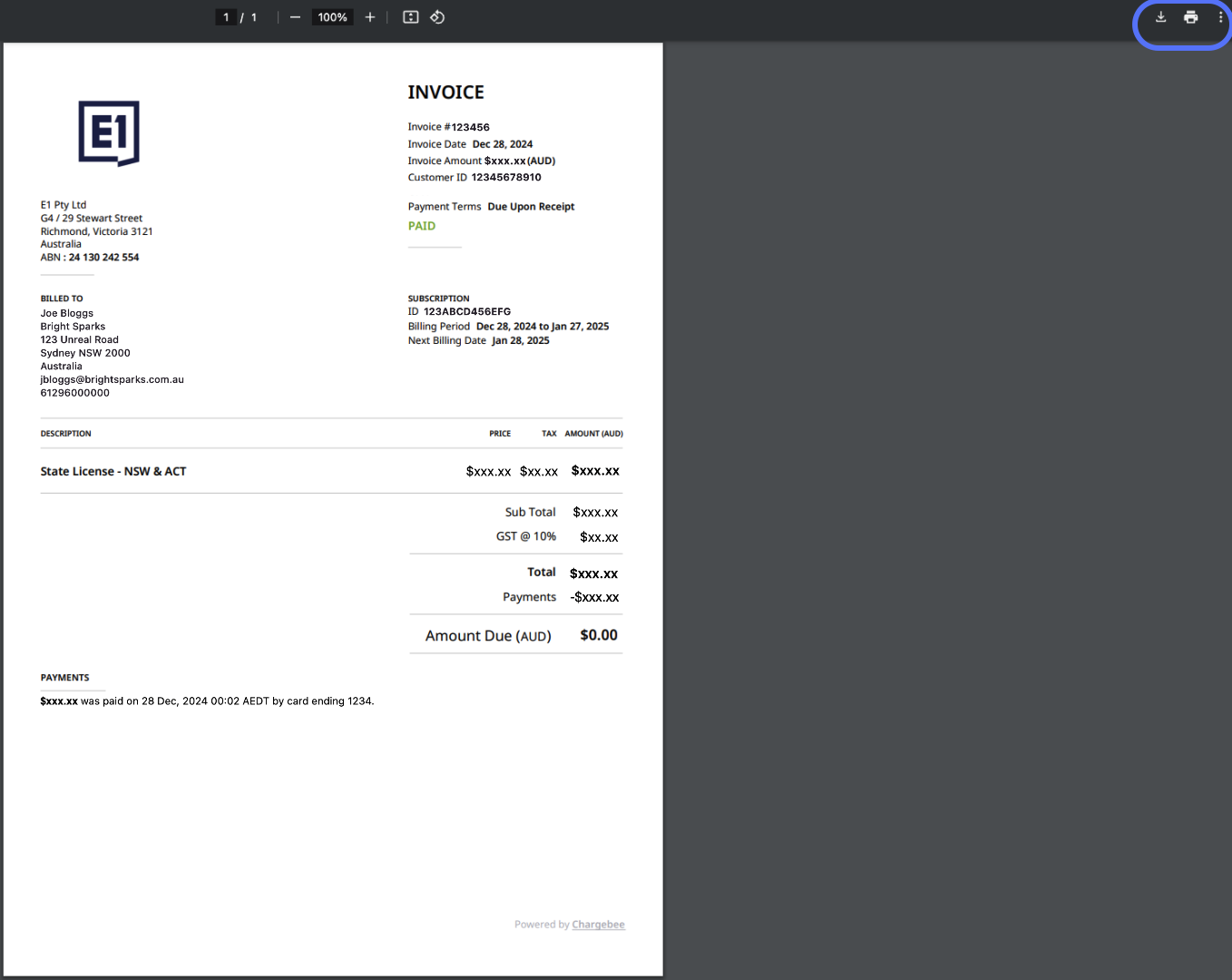
- Finding your Renewal Date: You can find your next renewal date by opening the most recent historical invoice and checking the "Next Billing Date" listed under the billing period.
- Downloading: Click the ‘View’ button to open the invoice in a new tab to save, print, or download.
Subscription renewals
Our renewal process is designed to be seamless. Here is what you can expect:
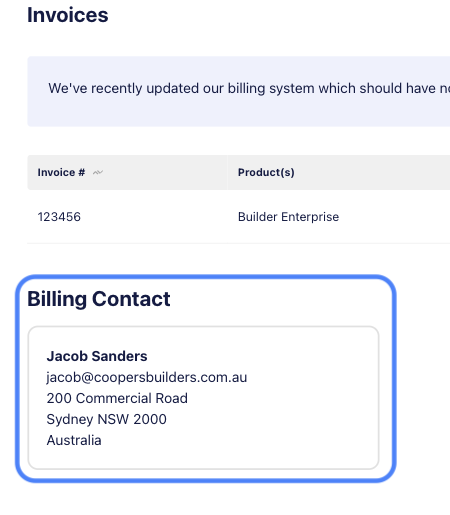
- 45-Day Reminder: You will receive an automated renewal reminder email 45 days before your subscription is set to expire, this will be sent to the nominated Billing Contact on your account. If you’re not sure who is listed as the billing contact, scroll to the bottom of the Invoices page and the details will be displayed.
- Invoice Issuance: Your renewal invoice is generated and becomes available in the platform on your renewal date.
- Payment Terms: All renewal invoices carry a 14-day payment term from the date of issue.
- Cancellations: If you do not wish to renew your subscription, you can follow the cancellation instructions outlined here.
Confirming receipt of payment
To confirm if a payment has been successfully processed, refer to the Status column within the Invoices tab:
- Paid: This confirms your funds have been received and applied. This status serves as your official receipt.
- Posted / Pending: The invoice has been issued but is not yet due.
- Payment Due / Outstanding: Charge has been attempted but has failed. We will retry.
- Voided / Cancelled: The invoice has been cancelled and is not payable.
If your records show a payment has been made but the status has not been updated to ‘Paid’, please reach out to our team so we can investigate. Please allow several business days for processing as this is not an instantaneous update after a payment is made.
Billing Contacts
Invoices are sent to the billing contact on file. Note that billing contacts cannot be updated manually within the portal.
You can see who your company Billing Contact is at the bottom of the Invoices tab:
To amend your billing contact information or if you require an invoice that is not appearing in your download list, please contact us.