This guide outlines how Administrator-level users on your account can update key company details within the E1 platform.
Keeping your profile current ensures accurate compliance, communication, and project management.
Who Can Update the Company Profile?
| User Role | Ability to Edit? | Notes |
|---|---|---|
| Administrator | Yes | This is the only user role with permission to access and modify the Company Profile settings. |
| Standard | No | Standard users will not see the required menu option. Please contact your company's E1 Administrator for assistance. |
Step-by-Step Guide to Editing Your Profile
Only Administrator-level company users can follow these steps to update your primary business information.
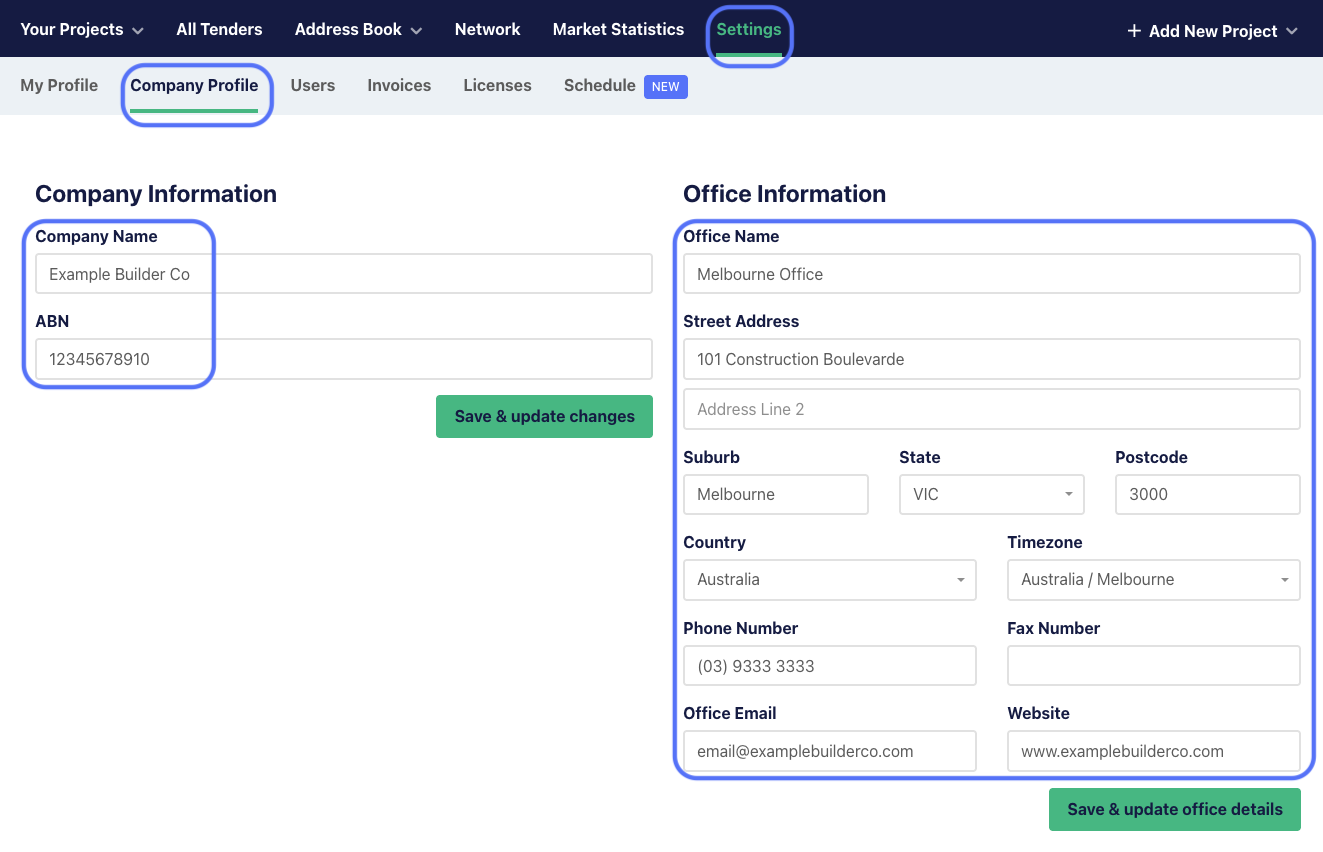
1. Access Settings: From the main E1 dashboard, click on the Settings tab. 2. Navigate to Profile: In the Settings menu, select Company Profile. 3. Make Edits: The Company Profile screen will display your current details. You can update the following fields:
- Company Name: Your business name.
- Company Email: Your primary company contact email address.
- Company Address: Your main business street address.
- Company Phone: Your main business telephone number.
- ABN: Your current Australian Business Number.
4. Save Changes: After making your required changes, click the Save & update changes or Save & update office details button.
Company Profile changes that require E1 Support
You may notice that your company logo and ITP banner cannot be updated directly via the Company Profile settings. These changes must be actioned by the E1 Support team.
If your logo has changed, please email your new logo to support@e1.network
The file guidelines are as follows:
Account Logo file requirements
- Ensure logo is in high res
- Tip: If logo text is white, it will not be visible on the email. Either use a different hex colour of your choice, or put a coloured background around the text.
- Logo must have the following dimensions:
- Width: 250 - 300 pixels
- Height: 200 Pixels
- The logo file must be a .png file ONLY
Account Banner file requirements
- The recommended logo sizing for the banner is as follows:
- Width: 170 - 220 pixels
- Height: 85 - 120 pixels
- Place logo in the middle of the chosen background image. The background image should have the following dimensions:
- Width: 2080 pixels
- Height: 360 pixels
- The banner file must be a .jpeg file ONLY