Overview
E1 now provides users with the ability to forward quotes along with their supporting email threads directly from their inbox into the corresponding E1 project. This centralises all key discussions, quotes, and decisions in one shared place for enhanced review and visibility.
By forwarding this information from your emails into E1 using a new project-specific email address you can:
- Include context: Capture quotes with supporting emails inside their respective E1 project
- Analyse Quotes: Review and analyse your quotes in E1 using ‘AI-powered Quote Analysis’
- Improve Visibility: Provide key stakeholders access and visibility across key discussions, quotes, and decisions in one shared place
Note that this feature is currently in a Beta phase and is not currently available to all users.
How to use centralised correspondence
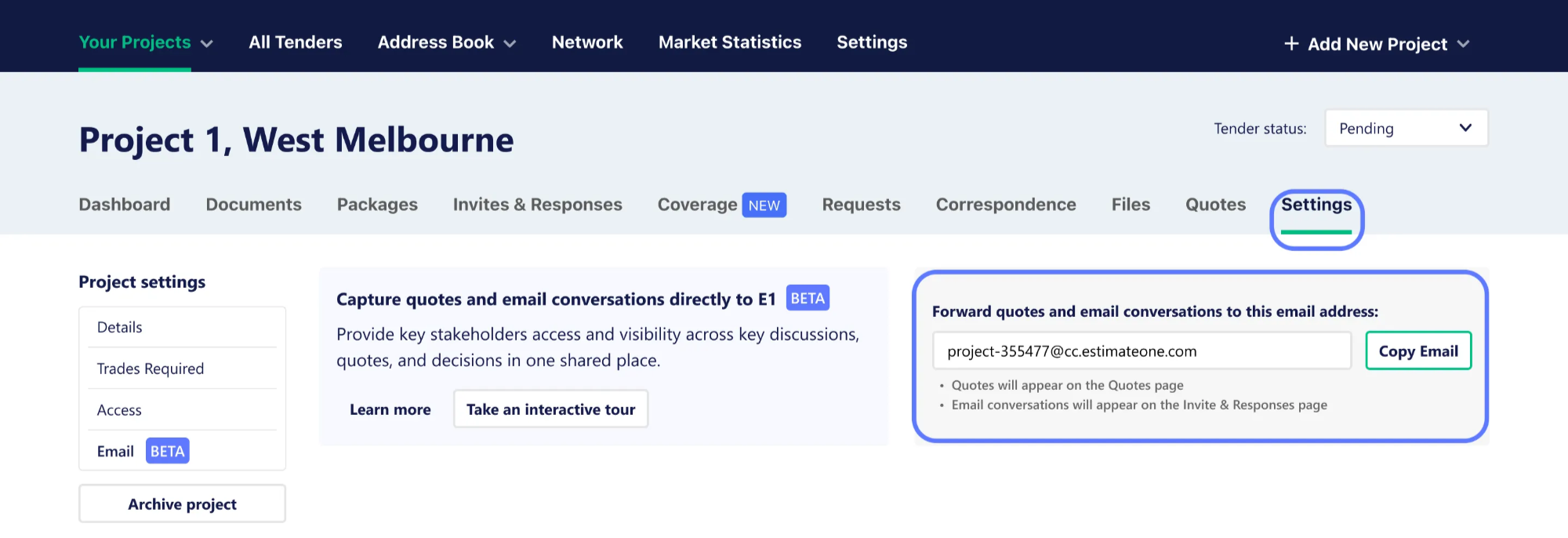
To get started, head to the Settings or Quotes section on any of your Projects:
Step 1: Locate the project-specific email address
- Navigate to the relevant project within E1.
- Head to either the Settings or the Quotes page for that project.
- Copy the project-specific email address displayed on the page.
Settings view:
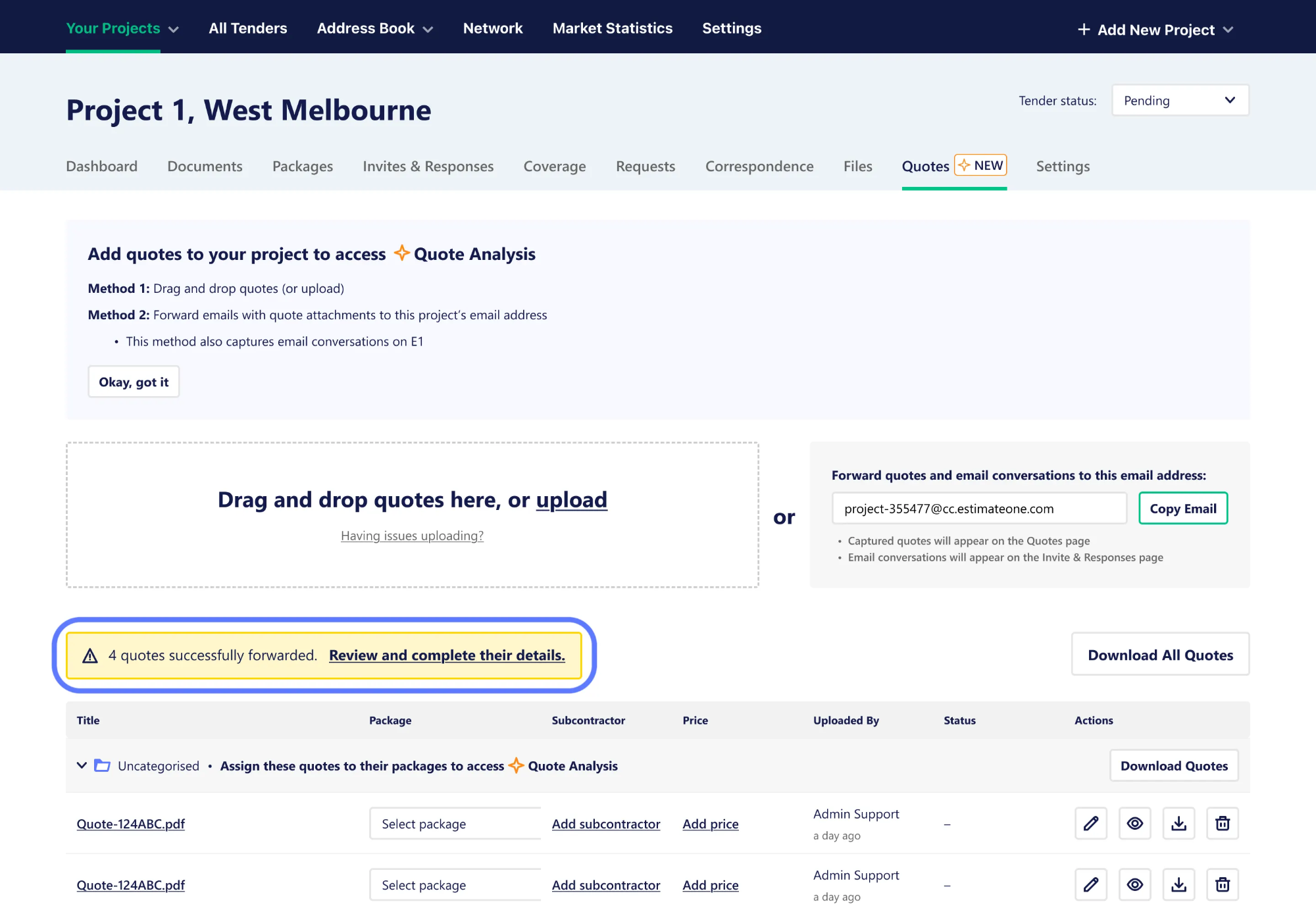
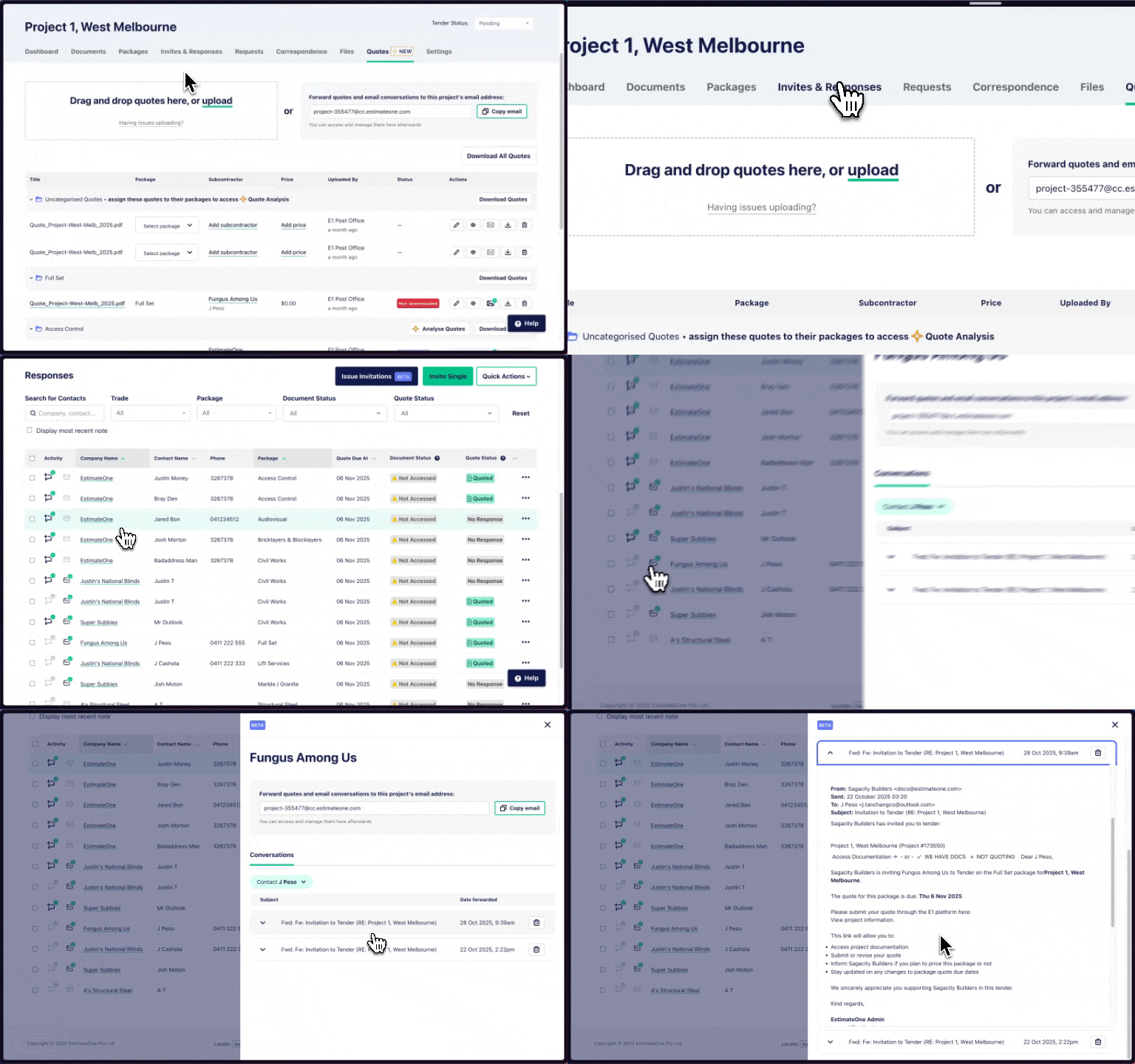
Quotes view:

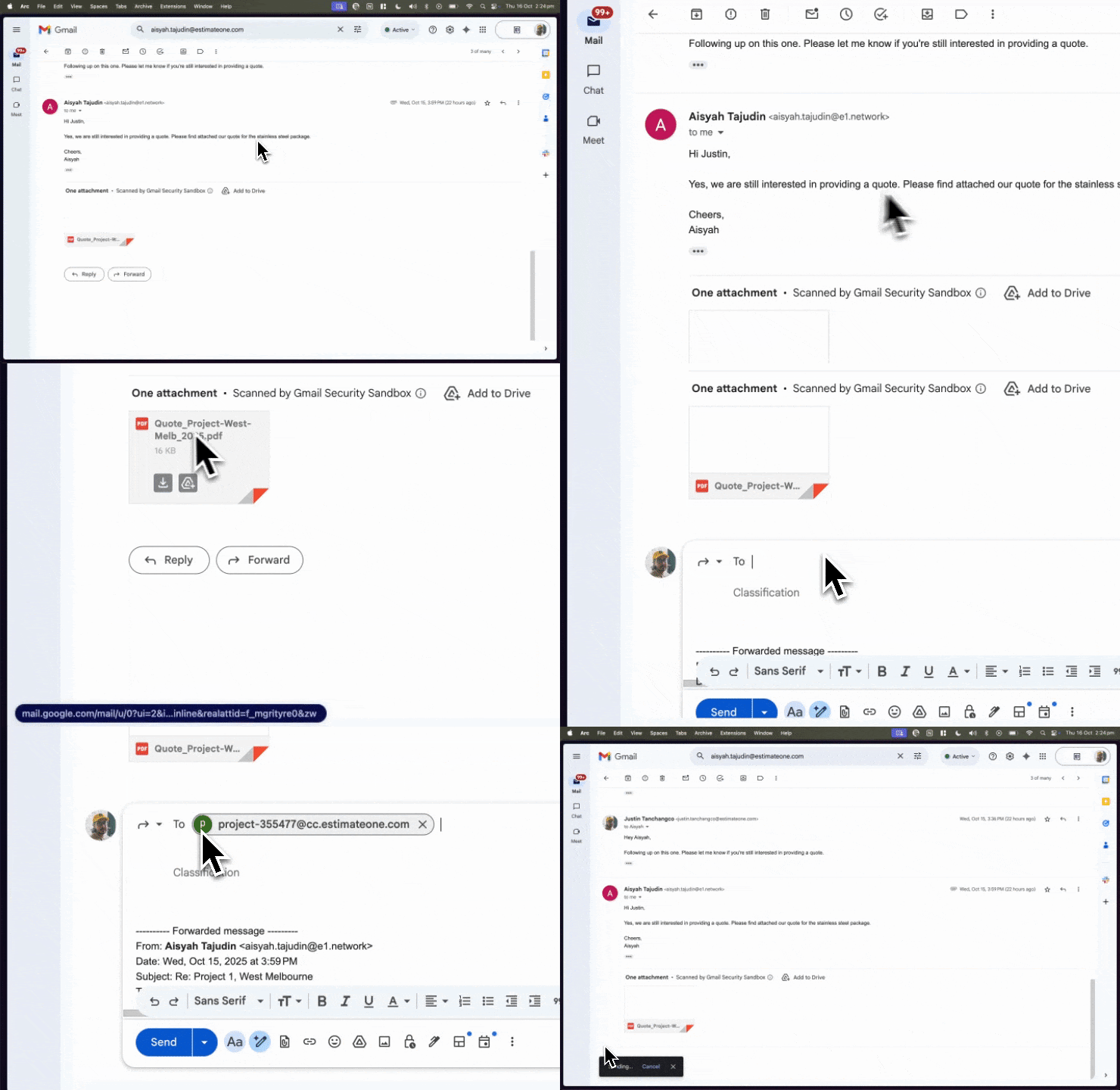
Step 2: Forward your emails
- Open the email containing the quote and the supporting conversation thread in your inbox.
- Use the copied project-specific email address to forward the entire quote and email conversation to E1.
Step 3: Review and manage the captured quotes
- Quotes forwarded from your inbox will appear within the project’s Quotes page.
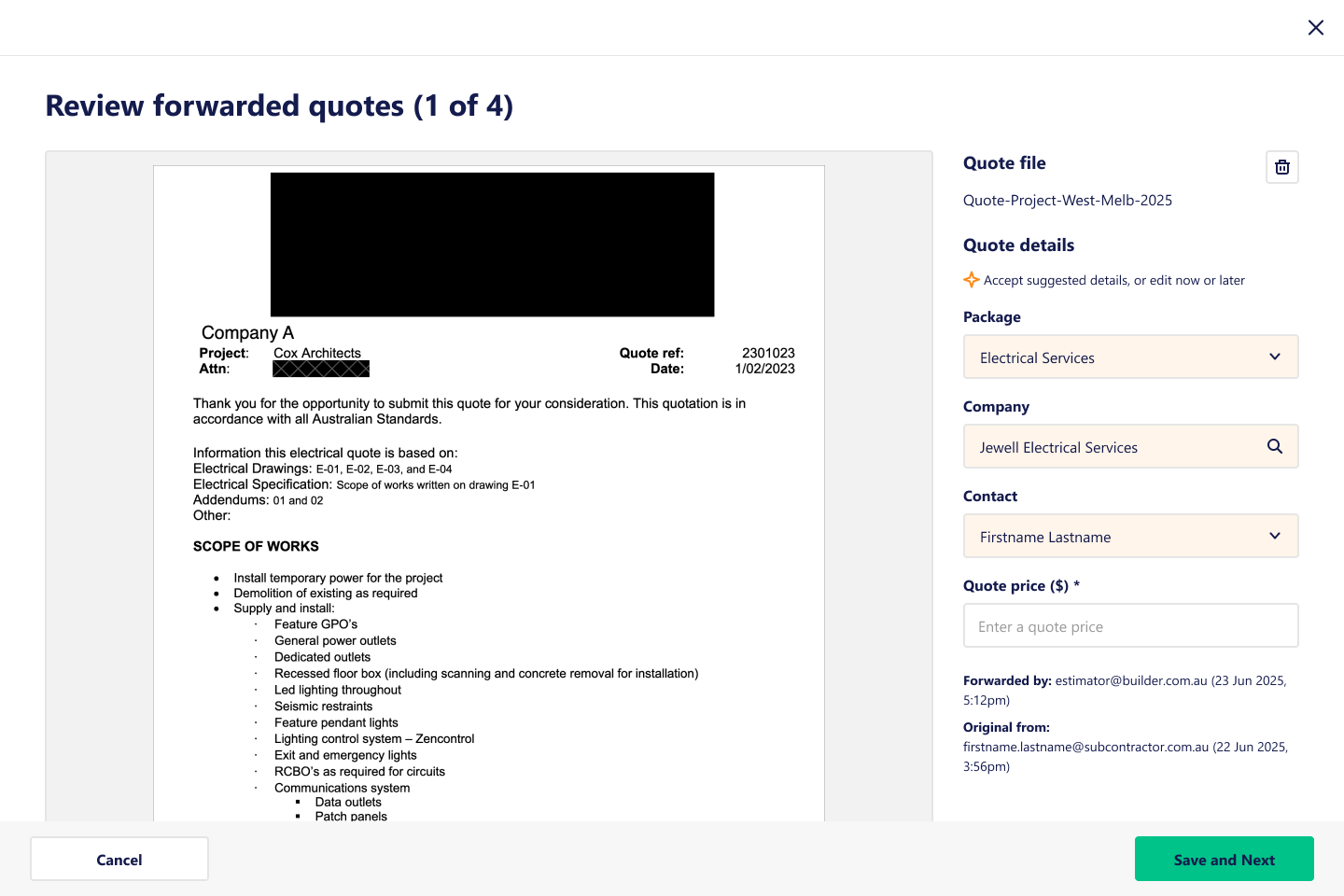
- You will be prompted to review the captured quotes.
- Accept any smart suggestions provided by the system, or edit the captured information as needed.
Step 4: Access forwarded conversations
- All forwarded email conversations can also be accessed on the 'Invites and Responses' page for the relevant subcontractor.
- Maintain Up-to-Date Records: You can forward emails to the project-specific address at any time to ensure you maintain up-to-date records on active subcontractor discussions on projects.