Quote Analysis leverages AI to automatically read and compare two to five subcontractor or supplier quotes within a single trade package.
By scanning for risks, discrepancies, and scope gaps in minutes, it allows you to move past manual data entry and focus on making informed pricing decisions.
How to get the most out of Quote Analysis
Quote Analysis complements your professional expertise, not replaces it. To integrate it seamlessly into your workflow, we recommend these best practices:
- Get an early start: Don't wait for all quotes to arrive. Run an analysis on the first few to get an early read on inclusions, exclusions, and potential scope gaps.
- Leverage BoQ mapping: Use the BoQ Comparison to instantly see how subcontractor line items align with your project’s Bill of Quantities
- Prioritise your follow-ups: Use the analysis to quickly identify which subcontractors and suppliers need clarification. The tool helps you spot ambiguities or missing items to build your RFI list faster.
- Perform a final sense-check: Before finalising your bid-levelling, use the tool as a final check to ensure all key risks and clarifications have been addressed.
What your Analysis Report includes
The report is organised into actionable sections to help you compare ‘apples to apples’.
Overview
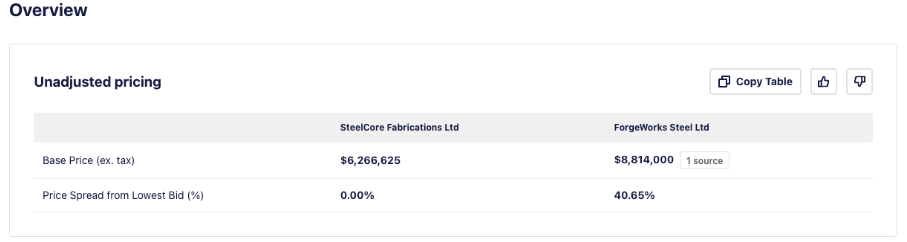
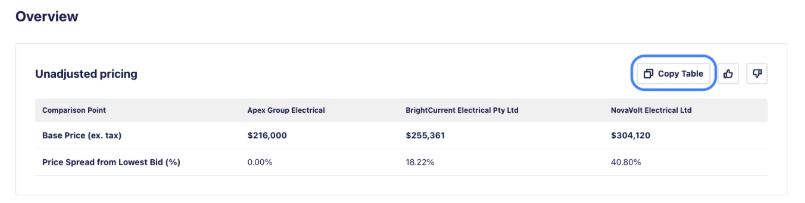
- Unadjusted Pricing: A side-by-side price comparison of the quotes, sorted by amount, that includes the calculated spread from the lowest bid to help you quickly understand the variance.
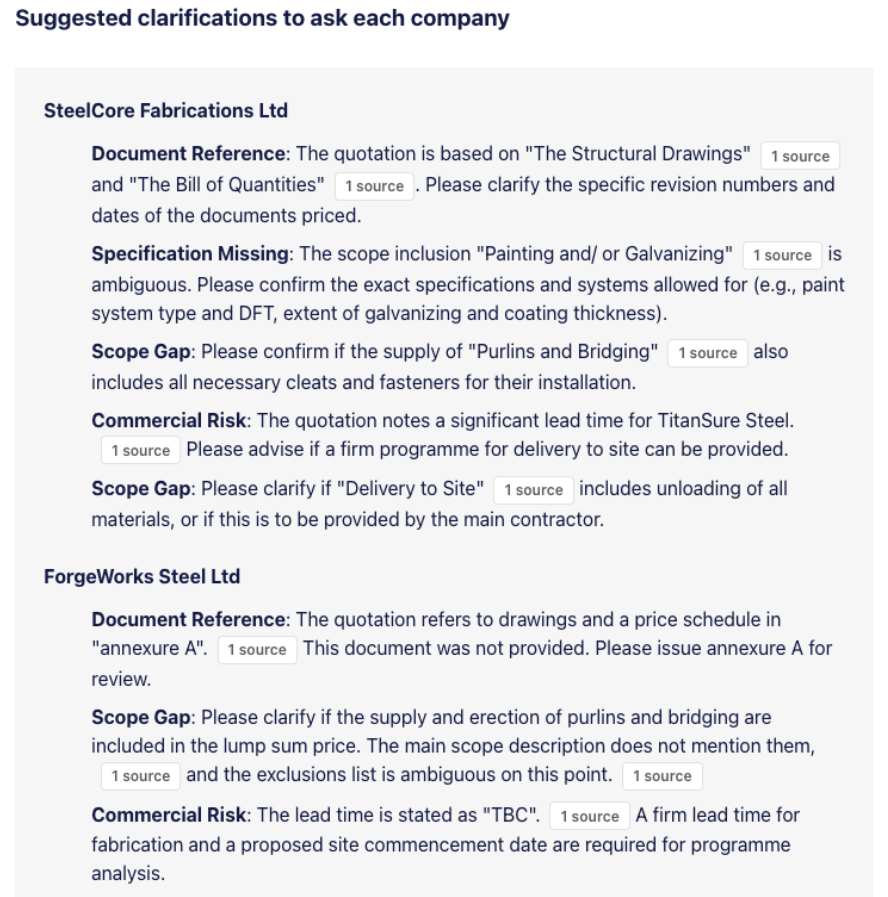
- Suggested Clarifications: AI-generated questions for each subcontractor, categorised by topic, to help you vet their quote.
- BoQ comparison & mapping
AI-powered Quote Analysis enables consistent, repeatable comparisons against your BoQ.
It highlights risks, gaps, and discrepancies grounded in the reliable structure of a BoQ, enabling faster reviews, clearer insights, and more confident pricing decisions.
BoQ comparison and mapping provides:
- Faster tender pricing - reduce time spent structuring and reviewing quotes from days to minutes; identify issues earlier and act sooner on clarification
- Better risk identification - better identify scope gaps systematically with anchoring against the BOQ, not just between quotes and shifting AI interpretation
- Improve confidence and reliability - consistent outputs in a clear, structured format that can be easily reviewed across runs, reducing ambiguity and rework, and increasing trust in results (and AI)
- Seamless downstream workflow continuation - Export comparisons aligned to your BOQ, making it easier to continue in your estimating workflows without restructuring or reformatting the data
Scope breakdown
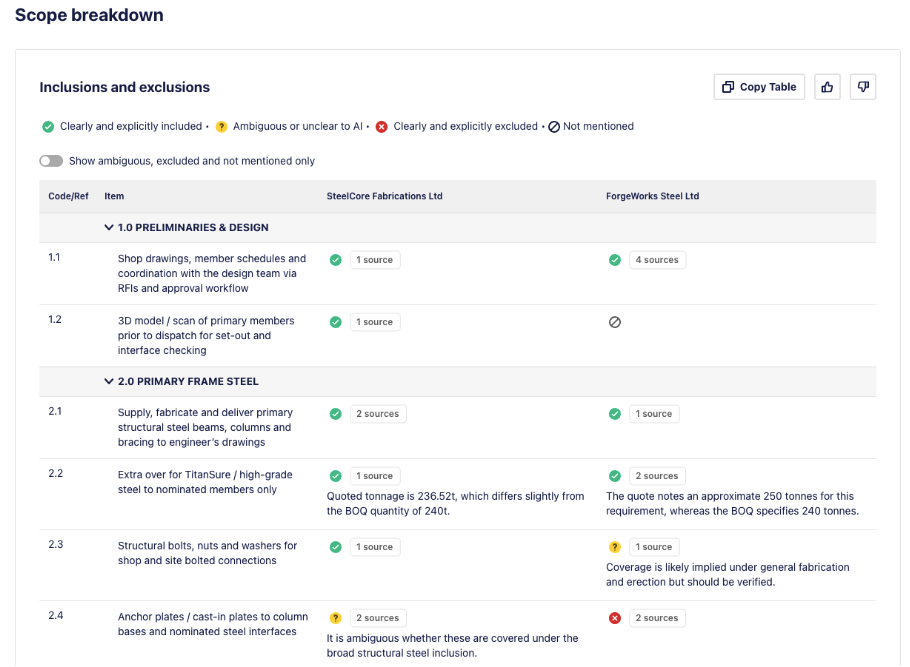
- Inclusions & exclusions: A comprehensive comparison of scope, organised under clear headings. The report includes additional comments for detail and highlights important risk factors related to exclusions.
- Risk Indicators: Visual icons highlight potential risks or missing items. Refer to the Legend at the top of the section for icon definitions.
Additional insights
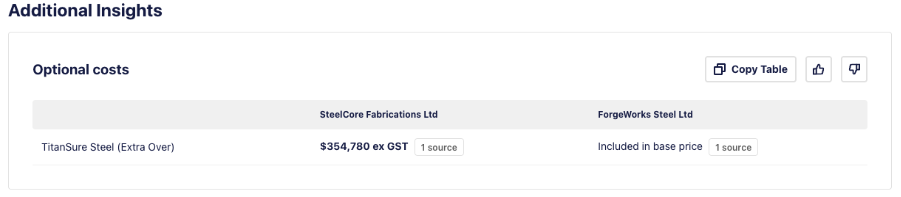
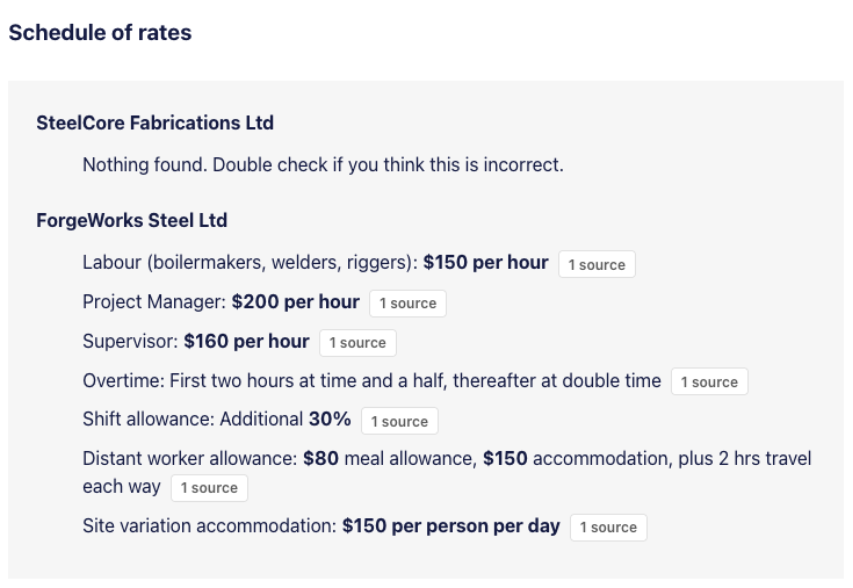
- Optional Costs / Schedule of Rates: Summarises alternative pricing or unit rates found within the documents.
Quick indicator icons
In the report icons are used as quick visual indicators. Refer to the legend at the top of each section for a clear definition of what each icon represents.
Here is an example of the icons and their definitions for the Inclusions located in the Scope Breakdown section of the report:

How to run a Quote Analysis report
Before you start: quote requirements & limits:
| Feature | Requirement |
|---|---|
| Quote Limit | 2 to 5 quotes per analysis. |
| Separate packages | Analysis is run on a per-package basis. You cannot analyse quotes from different packages together. |
| File Size | Max 10MB per file. |
| Supported Formats | PDF, Excel (.xlsx, .xls), TXT, MD, HTML, CSV. BoQs are also supported in Excel (.xlsx, .xls) and PDF. |
| Unsupported | Word (.docx), Emails (.msg, .eml). Please convert these to PDF first. |
Step 1: Prepare Your Quotes
Quotes can be submitted directly by subcontractors and suppliers or uploaded by you and your team if received from an email. If you have uploaded a quote ensure you assign it to a specific trade Package (e.g., "Structural Steel," "Electrical"). The analysis will not work on quotes left as 'Uncategorised' or in the 'Full Set'.
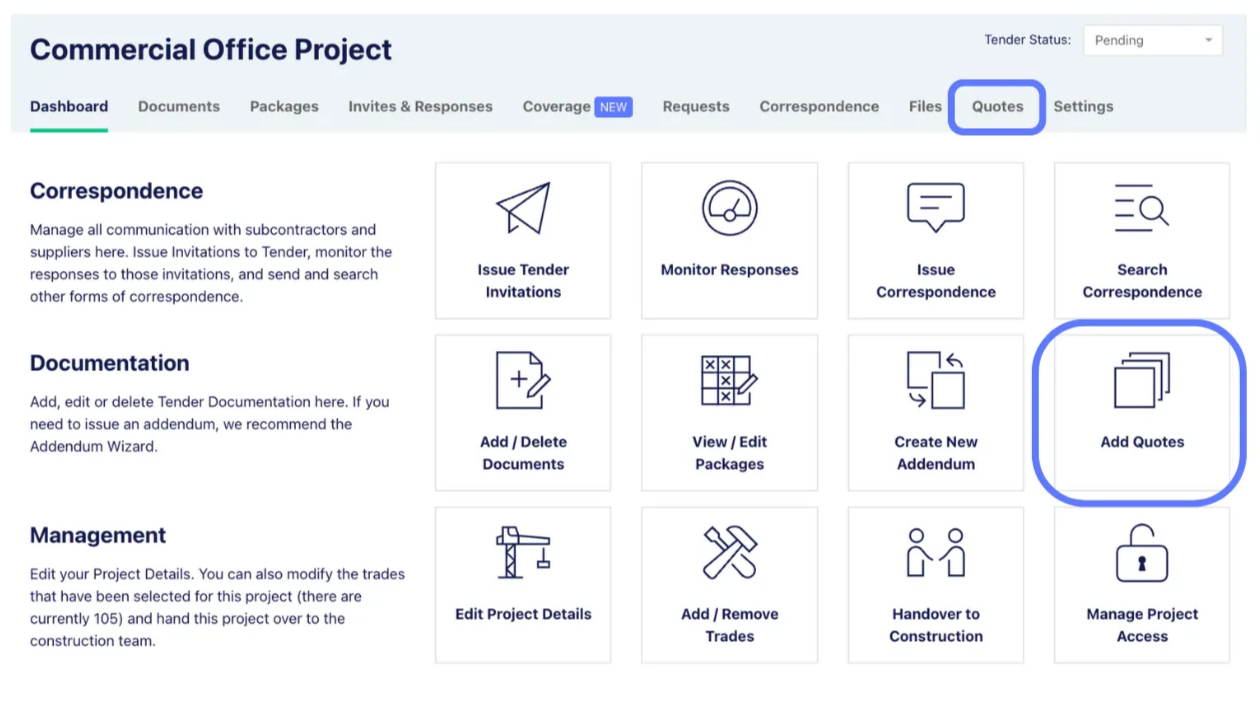
Step 2: Navigate to the Quotes Tab
Access your quotes via the Dashboard icon or the Quotes tab within your project.
Step 3: Upload quotes
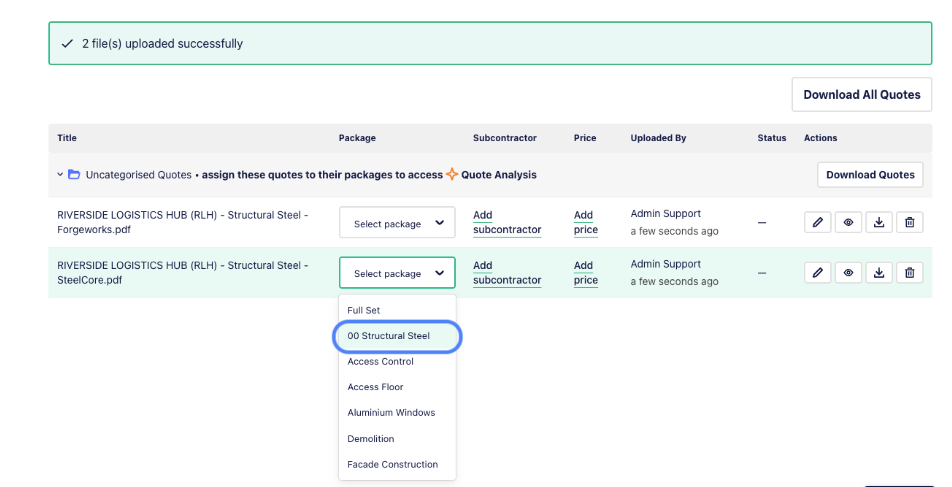
- Upload at least 2 quotes to the upload section of the Quotes tab (note that you can analyse a maximum of 5 quotes at a time).
- Select the appropriate package from the Package drop down menu.
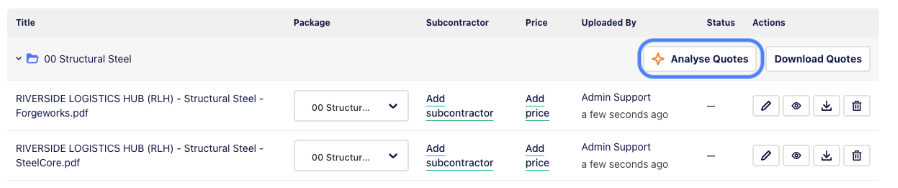
- Click ‘Analyse Quotes’.
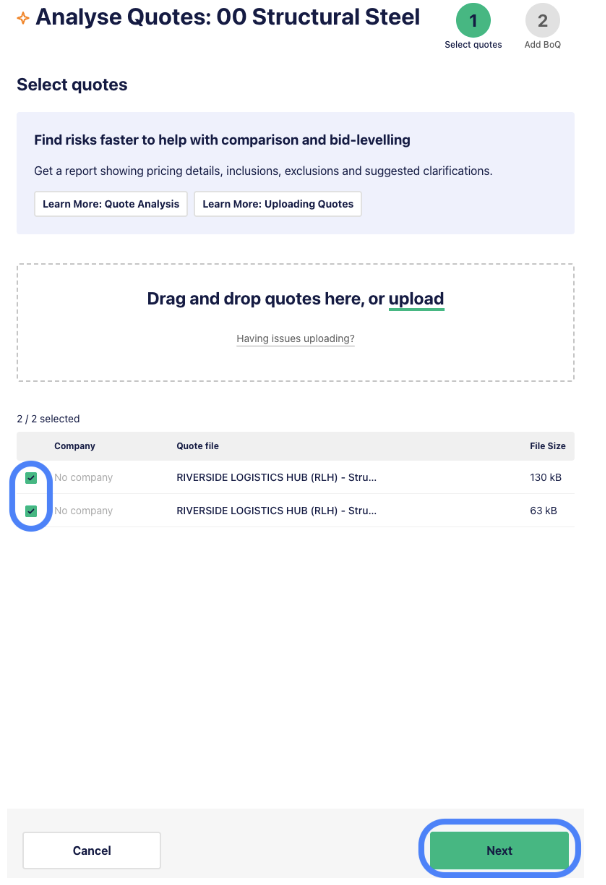
- Confirm your quote selection using the tick boxes next to each quote file, and click ‘Next’.
- You now have the option to upload a package-specific Bill of Quantities (BoQ).
The BoQ feature automatically maps line items from subcontractor quotes to your project’s Bill of Quantities, allowing you to instantly identify scope gaps and potential risks.
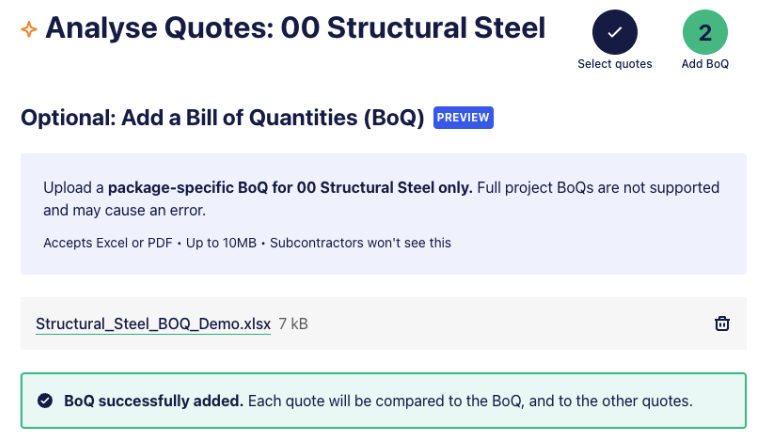
If you don’t upload a BoQ, click ‘Start without BoQ’ to run the analysis. Otherwise, click ‘Start with BoQ’.
Your Quote Analysis will be available shortly for review.
Understanding the analysis
Overview
The Overview section provides high level insights about the selected quotes, with a display of the initial price, excl. tax, and ordered from the lowest to highest.
Sources
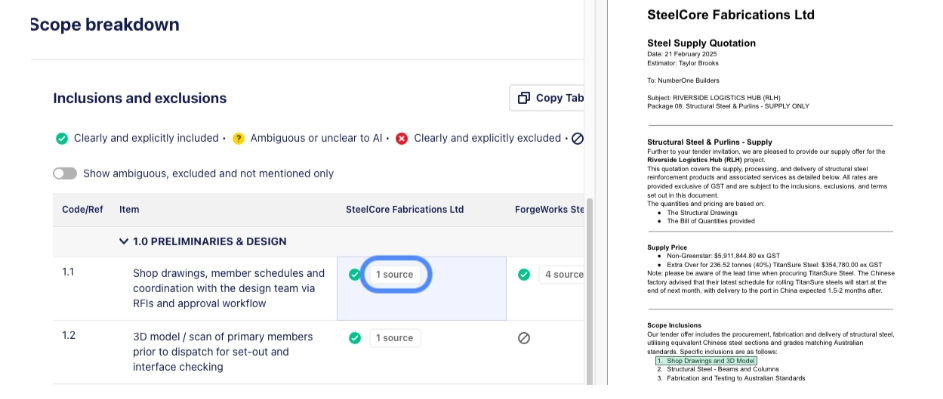
Build your confidence in how the AI reached a conclusion by checking the source of information in the report. For PDF quotes, the quote viewer opens with sources highlighted in green.
Excel quotes (.xlsx and .xls) don't include sources, so figures read from a spreadsheet won't have a highlighted reference. Opening an Excel quote from the report prompts you to download the file rather than showing it in the viewer.
Suggested clarifications
The Suggested clarifications section highlights a list of potential risks that we recommend seeking clarification on. It may be ambiguous or missing information, or conflicting references or details. Or the quoting company may have found extra scope not mentioned in the BoQ.
Scope breakdown
The Scope breakdown section is an in-depth comparison of inclusions and exclusions. Either against a BoQ's line items, or if there is no BoQ - AI gathers detected scope from all quotes.
Additional insights
The Additional insights section will highlight if optional costs or a schedule of rates exist in the quotes. Click the ‘source’ button to view details.
Schedule of rates
The Schedule of rates section will show rate schedules, if provided within the supplied quote documents. If this section is blank, no schedule of rates has been identified.
Viewing vs. Re-running
If an analysis has already been performed, you will see a ‘View Analysis’ button, click this to be taken to the existing analysis.
If you receive additional quotes, simply repeat the upload steps, assign the package and you will have the option to re-run the analysis with the additional quotation.
You can also re-run the analysis with an updated BoQ, whether you have new quotes to review or not. If the Re-run Analysis button isn’t clickable, please refresh your browser.

Reviewing your results & providing feedback
The analysis provides a powerful first pass, but its real value comes when combined with your professional expertise. As you review the report, compare the AI findings against your own assessment of the quotes and ask yourself the following questions:
- Was any piece of information inaccurate?
- What other information would help?
- Did it help you compare and level quotes better or faster?
You can provide feedback using the ‘Share Feedback’ button, or thumbs up and thumbs down sentiment buttons.
Sharing and exporting the analysis results
- Sharing: You can share the report by copying the unique web address (URL) from your browser.
- Exporting:You can export the quote analysis via the ‘Print or PDF’ button at the top right of the report.

- You can also copy the table of data and paste into a spreadsheet. Click the ‘Copy Table’ button which is located in the Overview section, then paste the copied data into your spreadsheet.
A crucial note on AI, accuracy, and trust
Quote Analysis is an assistant, but it's essential to understand its role as a decision-support tool, not a decision-making tool.
The final call and responsibility for the tender always rests with your team’s expertise.