Users with Administrator level access on your account can manage team members, and those with Standard access can view current and deleted users.
Adding new users
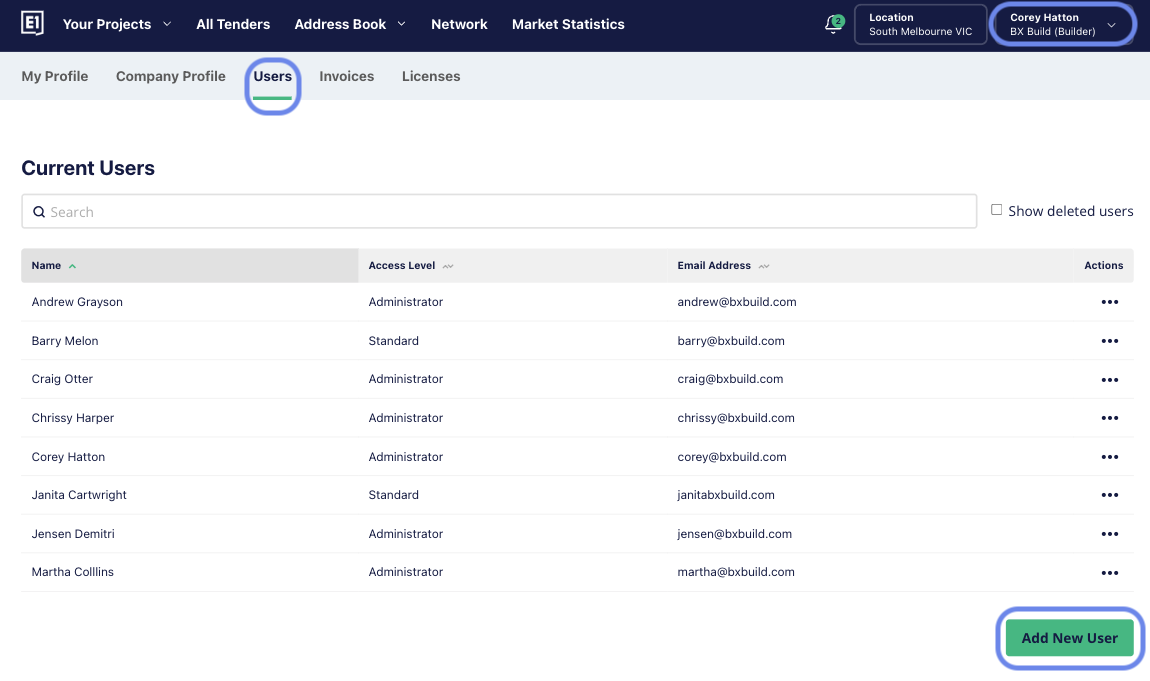
Admin level users can invite team members to your E1 account from the Settings tab, under Users.
Simply click 'Add New User' and fill in your team member's details. Tick the Admin box to give them Administrator access, or leave it unticked for a Standard user.
Your team member will get an email with a link to join the account.
How to change user permissions and details
E1 has two permission levels: Administrator and Standard. The table below shows what each can do.
| Feature | Administrator | Standard |
|---|---|---|
| Add new team members | ✅ | ❌ |
| Edit team member permissions (set Admin/Standard access) | ✅ | ❌ |
| Remove team members | ✅ | ❌ |
| Reactivate a deleted user | ✅ | ❌ |
| Add a tender project | ✅ | ✅ |
| Issue tender invitations | ✅ | ✅ |
| Receive and manage quotes | ✅ | ✅ |
| Issue addendums | ✅ | ✅ |
| Archive a project | ✅ | ✅ |
| Maintain Address Book (including Company and Contact Lists) | ✅ | ✅ |
| Export Address Book | ✅ | ❌ |
| Request removal of a project from the E1 platform | ✅ | ❌ |
| Set project-level visibility within your own team | ✅ | ❌ |
| Manage E1 subscription | ✅ | ❌ |
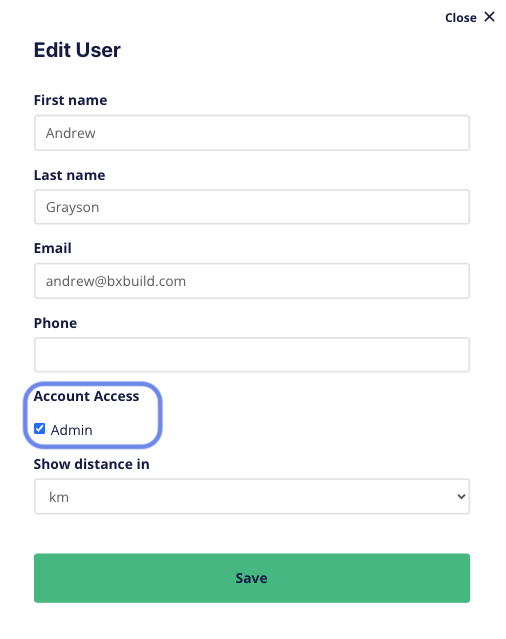
Administrators can switch a user between Standard and Administrator at any time. Or edit the user details, including first and last names, email address, and phone number.
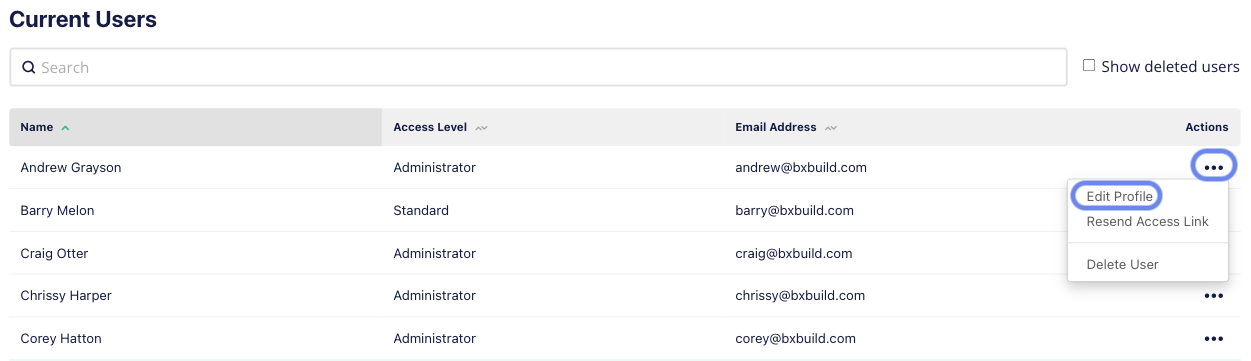
Head to Settings - Users, click the 3 dots next to the user, and select 'Edit Profile'. Tick or untick the Admin checkbox to set their access, and edit any other details.
Resending access links, deleting and re-instating users
Resending access links and deleting a user
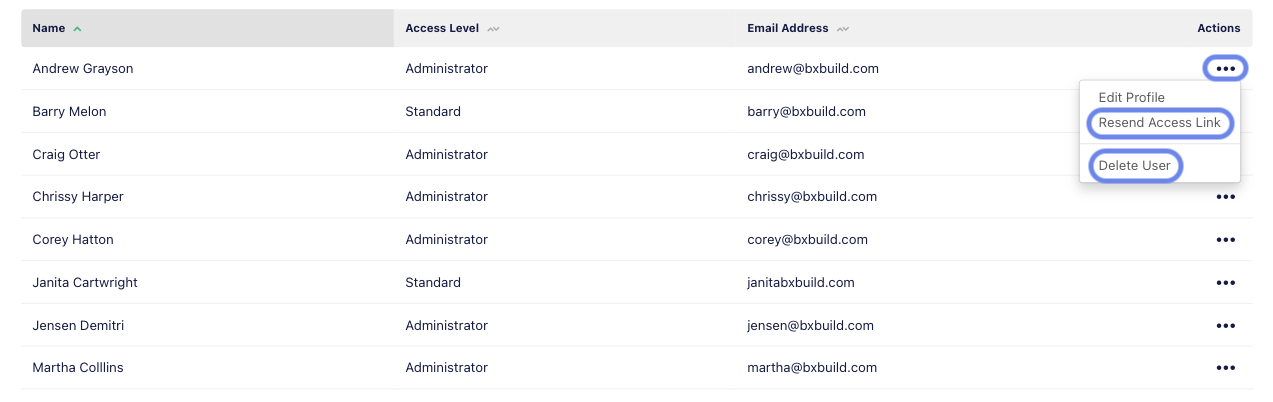
To resend an access link, or delete a user from your account, click the 3 dots next to their details and choose the action you need.
Reactivating a deleted user
If you've deleted a team member and need to bring them back, Admin users can reactivate them.
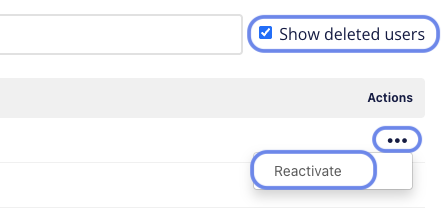
Head to Settings - Users and tick the 'Show deleted users' checkbox. Deleted users appear in the list with their details struck through. Click the 3 dots next to the user you'd like to restore and select 'Reactivate'. The team member will automatically receive an access link to their account.
What to do if your team member doesn't get their invitation
If your team member can't find the email, ask them to:
- Check their Spam or Junk folder.
- Search their inbox for "EstimateOne" or "E1".
- Clear their browser cache.